Field Service Reporting: What to Capture and How

Field service reporting is the practice of recording every job as it happens, then turning those records into numbers a manager can act on. The strongest setup ties each report to its work order, captures it on a phone before the technician leaves the site, and feeds invoicing and dashboards from the same data. When reports live in one system, nobody retypes anything, and the office sees the job status while the crew is still on site. That is how we built Firmanager: work orders, customer records, invoicing and analytics share one login, so a completed job becomes a report, an invoice and a metric in one flow.
This guide covers what a field service report contains, how crews create and share one efficiently, and which views help managers spot problems early.
TL;DR
- A field service report records the work done, the time and materials used, and the customer’s sign-off. It supports invoicing, warranties and compliance.
- Tie every report to a work order ID and complete it on a mobile device before the technician leaves the site.
- Track a short list of KPIs on daily, weekly and monthly views, and set alerts for the numbers that signal trouble.
- Pick tools where reports, customer records and invoices share one database, so data is never re-entered.
- Firmanager has a free plan, Pro at $19 per month and Business at $49 per month.
Table of Contents
- 📋 What a field service report is for
- 🧾 What a field service report should include
- ⚙️ How crews create and share reports efficiently
- 📊 The KPIs and dashboard views worth building
- 🔗 Connecting reports to work orders, customers and invoices
- ⚠️ Common reporting mistakes
- A short setup plan for a small team
- Start reporting from one platform
- FAQ
- Sources
📋 What a field service report is for
A field service report is the written record of a visit: who went, what they found, what they did, what they used and who agreed to it. One guide to field service reports lists four jobs it does: it records and communicates the work performed, it provides the basis for invoicing time and materials, it documents warranties and guarantees, and it serves as a compliance and regulatory record. The same guide notes that customer approval may be needed before the work is invoiced, because reports often carry customer details.
That list explains why reporting matters to everyone in a service business:
- Owners get a basis for billing and a defense if a customer disputes a charge.
- Managers see what happened on each job without calling the technician.
- Technicians have a clear record of what was done, so the next visit starts informed.
- Customers get proof of the work, often with a signature.
Field service reporting has two layers. The first is the individual job report. The second is the roll-up: totals and trends across all jobs, by technician, job type, customer or period. The roll-up is only as good as the job reports feeding it. If one technician writes “fixed” and another writes a full paragraph, no dashboard can compare them.
🧾 What a field service report should include
A useful report is short enough to finish on a phone and complete enough to settle a billing question. A field observation report guide makes the same point about on-site documentation: capture what you saw and did while it is fresh, in a consistent structure. For service work, these fields cover most trades, from HVAC and plumbing to cleaning and maintenance.
| Field | What to record | Why it matters |
|---|---|---|
| Work order ID | The number linking the report to the scheduled job | Keeps the report, invoice and customer history together |
| Customer and site | Name, address, facility or unit | Builds the service history for that location |
| Technician and crew | Who performed the work | Supports performance views and accountability |
| Arrival and departure times | Time on site | Feeds labor billing and utilization |
| Problem found | What the technician saw on arrival | Explains why the work was needed |
| Work performed | Specific actions taken | The core record for the customer and for warranty claims |
| Parts and quantities | Items used, with counts | Drives material charges and stock levels |
| Photos | Before and after images | Settles disputes quickly |
| Safety or compliance notes | Hazards, checks completed, permits | Required in many trades; supports audits |
| Follow-up work | What still needs to happen | Turns one visit into a scheduled next job |
| Customer signature | Sign-off on the work | Confirms approval before invoicing |
A 2026 automation guide for HVAC businesses recommends a standardized job-completion form tied to the work order ID and filled out on a mobile device before leaving the site, capturing the signature, parts and quantities, time on site and follow-up work. That matches the table above and works outside HVAC too.
Keep the form the same for every job of a type
Use one template per job type: a maintenance visit, an installation, an inspection, a cleaning round. Fixed fields and drop-down choices make reports comparable. Free-text notes still belong in the report, but they should add detail to structured fields, not replace them.
⚙️ How crews create and share reports efficiently
The fastest report is the one filled in at the job site, in the same app that shows the technician the work order. Here is the routine that works.
1. Start from the work order
The report begins when the job is assigned. The technician opens the work order on a phone and sees the address, the task list and the customer notes. Starting here means the work order ID, customer and site are already filled in, so the technician only adds what happened.
Where it goes wrong: reports created in a separate form or spreadsheet, with the work order number typed in by hand. Typos break the link between the job and its invoice.
In Firmanager, field staff use an employee self-service mobile portal to see their job details, and work orders sit in the same platform as customer and facility records.
2. Complete it before leaving the site
Reports written at the end of the day, or the end of the week, lose detail. Parts get forgotten and times are guessed. Make “report complete” a condition of closing the job. Check that the form has photos, parts and a signature before the technician drives away. A well-run technician checklist for on-site repair work follows the same logic: confirm the work, verify the result and document it at the customer’s location.
Where it goes wrong: offline dead zones. Basements, rural sites and plant rooms often have no signal. Test how your tool behaves without a connection. Our guide to field service CRM features and offline access walks through what to check.
3. Let the status change trigger the next steps
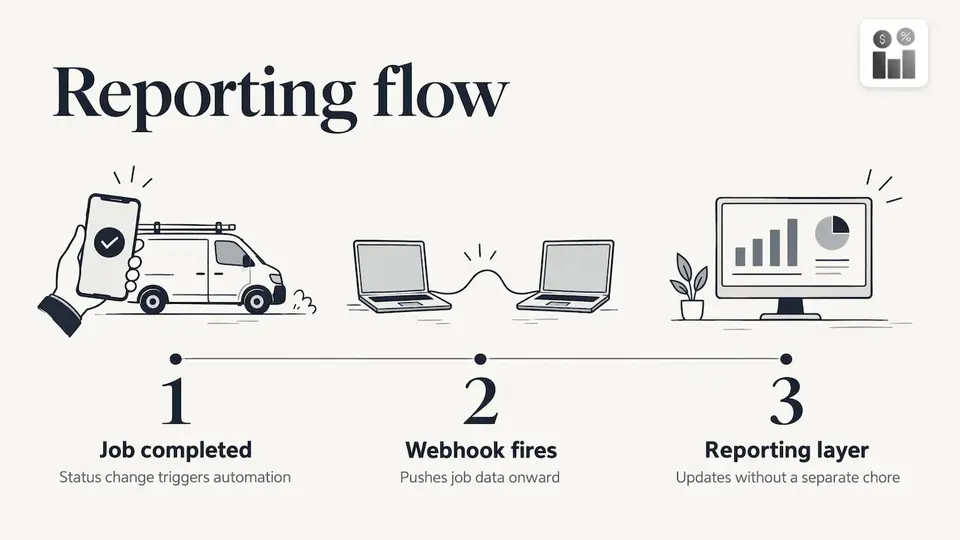
When a job is marked completed, the data should move on without anyone’s help. The HVAC guide above describes a webhook, an automatic message between systems, that fires when a job status changes to Completed and pushes the technician, job type, parts, invoice total and customer to the reporting layer. The point is that reporting happens as a side effect of finishing the job, not as a separate chore.
Automation tools can do this between separate apps. Zapier’s field service reporting page describes workflows that capture each submitted field report in real time, route job details to Google Sheets, Airtable or Salesforce, and flag missing customer details, job codes or service notes before incomplete reports move downstream. Connecting several apps this way works, but each connection is one more thing to maintain. A platform that already holds the work order, customer and invoice avoids the plumbing.
4. Notify the people who need to know
A report is only useful when the right person sees it. Office staff need to know a job closed so they can invoice. Customers like a confirmation. Managers need to know about problems immediately. Job status notifications by SMS and email cover all three, and our guide to job status notifications shows which events are worth alerting on and which only create noise.
5. Review exceptions, not every report
No manager can read every report. Set the system to surface the ones that need a look: missing signatures, jobs that ran long, unusually high parts use, follow-ups that nobody scheduled. Reading exceptions takes minutes and catches the problems that cost money.
📊 The KPIs and dashboard views worth building
The roll-up is where reporting pays back. Start with a short list. A dashboard with thirty widgets gets ignored; one with six gets checked every morning.
Metrics that managers use most
- Jobs completed and jobs open, by day and by technician. This shows workload and backlog.
- Time on site versus time scheduled. Large gaps reveal underquoted jobs or routing problems.
- First-time fix rate, the share of jobs resolved on the first visit. Repeat visits are costly, so this number shows whether technicians arrive with the right parts and information.
- Revenue by job type. It shows which services earn their place.
- Parts cost against invoice total. It shows where margins leak.
- Invoices issued and paid. It connects field work to cash.
- Compliance items completed, such as safety checks and inspections.
A daily, weekly, monthly rhythm
The HVAC automation guide proposes read-only dashboards for daily technician performance, weekly revenue by job type and monthly parts versus labor, plus a scheduled Monday 7 AM KPI email. It also sets threshold alerts, for example when average ticket falls below $180 per week, or when parts cost exceeds 35% of the invoice on more than 10 jobs. Those thresholds belong to that example business. Set yours from your own past numbers: look at three months of jobs, find what normal looks like, and alert on departures from it.
The cadence is the useful part:
- Daily: who did what, what is late, what is stuck.
- Weekly: revenue, margins, repeat visits, follow-ups not yet booked.
- Monthly: trends by customer, job type and technician, to inform pricing, hiring and training.
We lay out seven views in our article on field service dashboards that surface exceptions, each built to prompt an action instead of just displaying a number.
Dashboards are only as good as the data behind them
If technicians skip fields or choose “other” for every job type, the charts mislead. Fix this at the source: required fields, drop-downs and one template per job type. Capturing better data at the point of work beats cleaning it later.
🔗 Connecting reports to work orders, customers and invoices
The most expensive reporting habit is re-entering data. A technician writes up the job, the office retypes it into the billing system, and someone else summarizes it for the owner. Each step adds delay and errors. When evaluating a tool, check these links:
- Report to work order: the report belongs to a scheduled job, and closing it updates the job status.
- Report to customer and facility: each visit appears in that site’s history, so the next technician sees what was done before.
- Report to invoice: time and materials from the report flow into the invoice, with no second entry.
- Report to inventory: parts used reduce stock, so reorders reflect real use. Our 30-day vehicle trunk pilot shows one way to start tracking this.
- Report to compliance: safety and environment checks are recorded alongside the job, giving you an audit trail.
Firmanager combines these in one platform: CRM, customer and facility management, work orders, invoicing with Stripe integration, supplier and product management, HSE compliance, time and leave tracking, and financial management with real-time analytics. Data is cloud-synced, so the office and the field see the same record.
⚠️ Common reporting mistakes
- Free-text only. Reports you cannot filter cannot be summarized.
- Too many fields. Technicians skip long forms or fill them with filler. Keep the template to what you will actually use.
- Reporting after the fact. Details fade within hours.
- No owner for exceptions. If nobody reviews missing signatures or overruns, the alerts become wallpaper.
- Disconnected tools. A spreadsheet here, an invoicing app there, and a texting group for updates means no single source of truth.
- Measuring everything. Pick the five or six numbers that drive decisions and add others only when a question demands them.
A short setup plan for a small team
You do not need a long project. A team of five to fifteen technicians can set up reporting in a few days:
- List your three most common job types.
- Draft one completion form for each, using the table above.
- Make the form part of closing the work order.
- Choose five KPIs and one weekly review meeting.
- After a month, remove fields nobody used and add the one question managers kept asking.
💬 Our view: reporting should be a by-product of the job
We build Firmanager for service companies, and our position is simple: a report should not be a separate task. When a technician closes a work order on a phone, the record should already belong to the customer, the facility, the invoice and the dashboard.
That is why we put CRM, work orders, invoicing, HR and compliance behind a single login instead of splitting them across tools. Cloud sync means the manager in the office sees the same job data the technician just entered. Modular design means a small team can switch on what it needs today and add the rest later.
Our advice to owners is to measure fewer things, capture them at the source, and review exceptions every day. A platform that keeps the data connected makes that routine realistic.
KaiosMedia
Start reporting from one platform
Firmanager gives service teams work orders, customer records, invoicing, employee mobile access and real-time analytics under one login. You can begin on the Free plan at 0 $, move to Pro at $19 per month, or choose Business at $49 per month as your team grows. See the plans on the Firmanager site or open the Firmanager app to set up your first work order.
For the mobile side of the routine, our practical guide to mobile job management shows how crews handle jobs from the field.
FAQ
What is the purpose of a field service report?
It records what was done on a job so the work can be billed, verified and defended later. According to a field service report guide, reports also document warranties and support compliance records. For managers, the same reports feed performance and revenue views.
How long should a field service report take to complete?
A few minutes on a phone, if the form is built well. Start from the work order so customer and site data are filled in, use drop-downs for common entries, and ask only for fields you will use. If technicians regularly need more than a few minutes, the template is probably too long.
Which KPIs should I track first?
Start with jobs completed, time on site against time scheduled, first-time fix rate, revenue by job type, and parts cost against invoice total. Review them daily, weekly and monthly. Add more only when a specific question needs them.
Do I need separate tools for reports, invoicing and customer records?
Not necessarily. Separate tools can be linked with automation, but each link needs upkeep and can fail. An all-in-one platform such as Firmanager keeps the work order, customer record, invoice and analytics in one place with one login.
Sources
- Know your docs: Field Service Reports (FSRs), Documill
- Field Service Reporting Automations & AI Workflows, Zapier
- Stop Manual Reporting in HVAC: Fix It in 2027, Ustechautomations
- Field Observation Report: What to Include and How to Write One
- Device Repair Technician Checklist: 2026 Best Practices
Recommended
Run your whole business in one place
CRM, quotes, work orders, invoicing, expenses, HR and HSE — one login, every device. Free-forever plan.
Start free →