Work Order Status Codes: Definitions and Setup Rules
Work Order Status Codes: Definitions and Setup Rules
Work order status codes are the short labels that mark a work order’s position in the maintenance lifecycle and trigger the actions and reports that follow. The core design rule is simple: keep the system-level status list short, and push tactical detail like “waiting on a part” into substatuses instead of inventing a new top-level status for every delay. Get this right and your aging reports, technician dashboards, and closure metrics all stay trustworthy.
TL;DR:
- System statuses should reflect the work order lifecycle and not be overwritten by substatus labels to ensure accurate reporting and avoid data corruption.
- Enforce transition rules strictly, preventing work orders from skipping essential stages like from Reported directly to Closed, to maintain correct cost posting and aging calculations.
- Use concise, code-based status labels paired with clear definitions, and map custom labels back to core statuses to streamline dashboards and reporting.
- Only assign substatuses that trigger specific workflows or alter report data, avoiding unnecessary complexity that adds noise rather than value.
- Confirm that only statuses like Completed and Closed automatically stop the aging clock, and validate transition timestamps regularly for precise metrics.
Table of Contents
- What are the standard work order status codes?
- System status vs substatus vs booking status: what’s the difference?
- What is the typical work order lifecycle and which transitions should be blocked?
- How do you set up work order status codes in your system?
- Which work order statuses stop the aging clock?
- How Firmanager builds and enforces status models
- What operations managers get wrong about status codes
- Put a working status model in your CMMS this week
- Where to check status configuration details
- Sources
What are the standard work order status codes?
Most maintenance teams work with some version of the same status set. Dartmouth’s facilities operations team publishes one of the clearest public examples, and it lines up with what you’ll find in most CMMS and EAM platforms.
- New/Reported: the work order exists but hasn’t been assigned. Open.
- Assigned/Scheduled: a technician or crew is on the hook, with a date attached. Open.
- In progress: work has started. Open.
- On hold: work stopped for a reason outside the technician’s control. Open.
- Waiting on customer: the requester needs to confirm access, approve a quote, or answer a question. Open.
- Completed: labor and parts are finished and logged. Closed for aging purposes.
- Closed: the record is reviewed, costed, and locked. Closed.
- Canceled: the request was withdrawn or duplicated. Closed.
Tactical substatuses like “Awaiting parts,” “Pending approval,” or “Waiting on customer callback” sit underneath these. A technician might mark a work order On hold, Awaiting parts so dispatch knows exactly why the clock stopped, without adding a whole new status to your master list.
System status vs substatus vs booking status: what’s the difference?
These three layers get confused constantly, and the confusion is what breaks dashboards. Microsoft’s Dynamics 365 Field Service documentation draws the distinction cleanly, and it applies broadly across CMMS and EAM platforms, not just that one product.
- System (header) statuses control lifecycle reporting: Unscheduled, Scheduled, In Progress, Completed, Posted, Canceled. This is what your KPIs and aging reports read.
- Substatuses are custom, tactical records that add operational detail without changing the header status. Create one when you need to explain a delay, not just log it.
- Booking statuses live at the technician or crew level, tracking a specific visit or shift. They map upward into the work order’s system status.
Never rename or repurpose a system status value to mean something else locally. If the label doesn’t fit your workflow, add a substatus or adjust the display text. Editing the underlying value breaks every report built on top of it.
What is the typical work order lifecycle and which transitions should be blocked?
A work order generally moves from Reported to Assigned to In Progress to Completed to Closed, with On Hold and Waiting on Customer as detours along the way. Each stage carries an operational meaning: Reported means intake, Assigned means resourced, In Progress means labor is being logged, Completed means the physical work is done, Closed means the finance and reporting side is locked.
Enforcing transition rules matters more than most teams realize. IBM’s Maximo support documentation notes that administrators should prevent a work order from skipping straight from Reported to Closed, because that jump bypasses the steps where labor, parts, and actual costs get posted correctly.
- Allowed: Reported → Assigned → In Progress → Completed → Closed.
- Allowed: In Progress → On Hold → In Progress (a part arrives, work resumes).
- Blocked: Reported → Closed (skips assignment, labor logging, and cost posting entirely).
- Blocked: Completed → Assigned (work already finished; reopening should require a new status or a formal reopen action, not a backward jump).
Most CMMS and EAM platforms let you configure these rules in a status transition matrix, where each row defines which “from” and “to” combinations are valid.
Pro Tip: Build your transition matrix before you touch naming or automation. Everything else in your status setup depends on which moves are even legal.
How do you set up work order status codes in your system?
Before you create a single status, answer three questions: who updates statuses (technicians in the field, dispatchers, or both), whether updates happen on mobile or in the back office, and which statuses your finance team needs to see for cost posting. Those answers shape everything downstream.
- Use a short code paired with a readable label (e.g.,
WOPfor “Waiting on Parts”) so reports stay compact but interfaces stay clear. - Map any user-defined or department-specific status labels back to your system-level statuses, so a technician’s “Stuck” and a dispatcher’s “Blocked” both roll up to the same reportable value. Oracle’s PeopleSoft documentation covers this header-versus-task weighting in detail.
- Apply a granularity rule: only add a substatus when it needs to trigger a workflow or change how something gets reported. A status that exists purely to describe a feeling (“Frustrating job”) adds noise, not data.
- Tie automation triggers to specific transitions: moving to “Awaiting Parts” can fire a purchase order, moving to “Assigned” can send a technician notification, and moving to “On Hold” past a set number of hours can trigger a reassignment alert.
Pro Tip: If a status change doesn’t change what happens next, either automatically or in a report, it probably belongs in a comment field, not a new status code.
Which work order statuses stop the aging clock?
Only certain statuses should stop a work order’s Days Aged counter, and getting this wrong quietly wrecks your backlog reports. Siemens’ Asset Management documentation points out that typically only Completed and Closed stop aging automatically. Statuses like Declined or Void don’t affect Days Aged unless you configure them to.
- Tag every status as open or closed for aging purposes at setup time, not after your first bad quarterly report.
- Capture transition timestamps on every status change; they’re what your mean time to repair calculations depend on.
- Use substatus categories (parts, approval, access) to break down root causes in backlog reviews instead of guessing why work orders stall.
- When auditing, spot-check a handful of “Completed” work orders to confirm the aging clock actually stopped and costs posted before closure.
How Firmanager builds and enforces status models
Firmanager keeps the system-status list to the essentials: New, Assigned, In Progress, On Hold, Completed, and Closed. Everything more specific, like “Awaiting Parts” or “Pending Customer Approval,” lives as a substatus tied to one of those six.
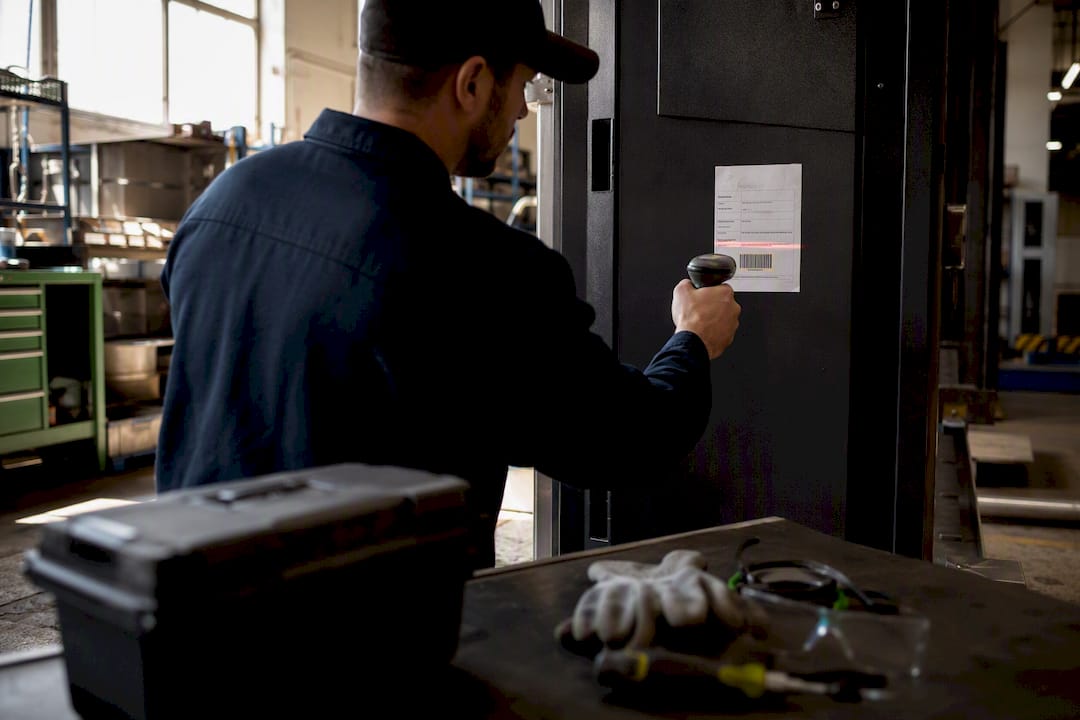
Booking statuses from technicians in the field sync back automatically, so a “job started” scan on a phone updates the work order’s system status without a dispatcher touching a keyboard. Transition rules are enforced at the platform level: a work order can’t jump from New to Closed, and Completed work orders require a deliberate reopen action rather than a backward drag on a board.
What operations managers get wrong about status codes
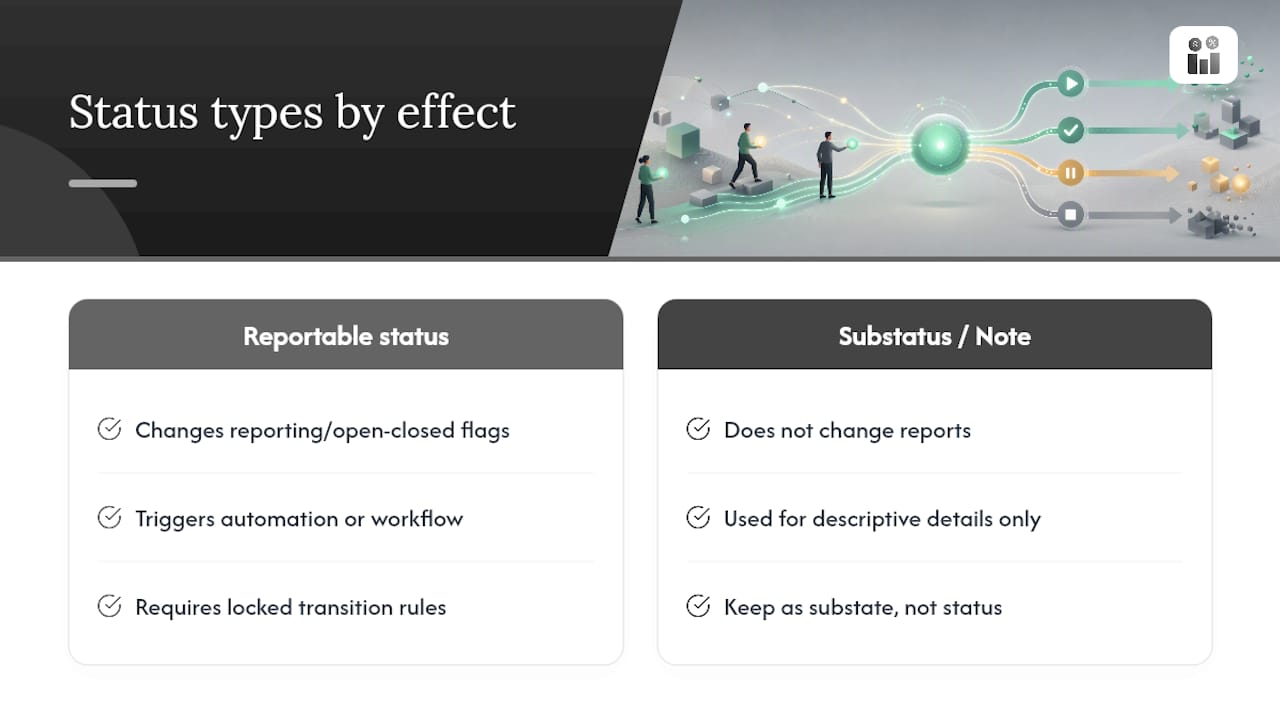
Most teams build their status list around what feels descriptive, not what’s actually reportable. That instinct produces a dozen statuses that all mean roughly the same thing to a dashboard: work isn’t finished yet. The better approach, backed by how platforms like Maximo and Dynamics 365 structure their status models, is to treat every new status as a question: does this change a report, or trigger a workflow? If the answer is no, it’s a substatus or a note, not a status.
The conventional advice on this topic tends to stop at “define your statuses clearly,” which is true but incomplete. Clear definitions don’t help if your transition rules let a work order skip from Reported straight to Closed, silently corrupting your cost postings and your aging report in the same move. Prioritize the transition matrix first. Naming conventions and automation triggers matter, but they’re built on top of a lifecycle that has to be locked down before anything else works.
If you take one thing from this guide, make it this: audit your open/closed flags before you audit your labels. A mislabeled status is a cosmetic problem. A status that doesn’t stop the aging clock when it should is a reporting problem that compounds every week it goes unfixed.
— KaiosMedia
Put a working status model in your CMMS this week
Firmanager gives you the status model this guide describes already built in, not something you have to configure from a blank slate. System statuses, substatuses, and technician booking updates sync through one platform, so a status change on a mobile job triggers the right automation (a parts order, a customer notification, a dispatcher alert) without manual follow-up.
Work order tracking, invoicing, and reporting all run off the same status data, which means your aging reports and technician dashboards read from a single source instead of three disconnected tools. If you’re still running status updates through spreadsheets or a tool that can’t enforce transition rules, start a trial at Firmanager and set up your status model in an afternoon.
Where to check status configuration details
For deeper configuration reference, see Microsoft’s field service documentation on booking status mapping and Dartmouth’s facilities status codes for canonical definitions. For real-world facility operations context, Sandison’s facility maintenance program shows how status-driven reporting plays out day to day.
Sources
- Work order status and booking status (Microsoft Dynamics 365 Field Service)
- Maximo: Allowable status changes for work orders (IBM Support)
- Work Order Status Codes (Dartmouth Facilities Operations & Management)
- Work order status definitions (Siemens Asset Management help)
Recommended
Run your whole business in one place
CRM, quotes, work orders, invoicing, expenses, HR and HSE — one login, every device. Free-forever plan.
Start free →