Stop Reentering Data: Work Order Templates for Field Service Owners
Stop Reentering Data: Work Order Templates for Field Service Owners
A modern work order template is not a form. It’s a living job definition that connects scheduling, mobile technician execution, parts and labor capture, and invoicing into one automated flow. Built correctly inside a cloud platform like Firmanager, it removes the double entry and guesswork that paper checklists always create.
TL;DR:
- Effective cloud work order templates must capture all operational and financial data, including metadata, checklists, parts, labor, and signatures, without requiring multiple documents.
- Templates should be designed around the entire service workflow, with conditional logic and automated triggers to reduce friction and improve accuracy during field execution.
- Mobile-first, offline-capable design with large tap targets and easy camera access is critical for technician usability and data integrity in areas with poor connectivity.
- Automating recurring, schedule-based maintenance and ensuring tight integration with invoicing, inventory, CRM, and telematics streamline operations and minimize manual entry errors.
- Regular review, technician involvement, and industry-specific customization help keep templates accurate, relevant, and aligned with current business practices.
Table of Contents
- What Belongs in a Cloud Work Order Template?
- Design Templates Around the Workflow, Not the Paper Form
- Building Templates Technicians Will Actually Use in the Field
- Turning Templates Into Automated, Recurring Work
- Connecting Templates to Accounting, Inventory, and CRM
- How to Roll Out New Work Order Templates in 90 Days
- Work Orders as the Core of Field Service Management
- Why Scheduling and Dispatch Need to Speak the Same Language as Your Templates
- The Standard Fields Every Work Order Template Needs
- Work Order Templates by Industry: HVAC, Facilities, and IT Services
- Customizing Templates Without Breaking Consistency
- Keeping Templates Accurate as Your Business Changes
- Common Mistakes That Undermine Work Order Templates
- Why Firmanager Builds Every Template Around the Full Job Lifecycle
- Try Firmanager’s Work Order Templates in Your Business
- Sources
What Belongs in a Cloud Work Order Template?
A work order template earns its place in your dispatch stack only if it captures everything a technician, a Miller, and an auditor would each need without three separate documents. That means designing every field with a downstream use in mind, not just a box to check.
Header and job metadata comes first: customer, site or asset ID, priority level, job type, and assigned technician. These fields drive routing and reporting, so they need to be structured (dropdowns, not free text) if you want clean data later.
Checklists and SOP links turn a vague job description into a repeatable procedure. A refrigeration inspection checklist that links directly to the manufacturer’s safety steps prevents technicians from guessing at sequence or skipping a lockout step.
Parts, hours, and labor entries should feed directly into invoicing rather than sitting in a separate note field. If a technician logs three hours and two compressor fittings, that data needs to land on the invoice without anyone retyping it.
Attachment, photo, and signature fields protect you on disputed jobs. Before/after photos, a customer signature, and a technician signature timestamp are the difference between “he said, she said” and a closed case.
Close-out validation matters just as much as the fields themselves:
- Require photos before a job status can move to “complete”
- Block invoice generation until parts and labor are entered
- Flag any job missing a customer signature for supervisor review
- Auto-populate asset history so the next technician sees prior notes
Design Templates Around the Workflow, Not the Paper Form
The biggest error in template design is porting a paper checklist into a digital field one for one. That approach digitizes a broken process instead of fixing it. The better method starts by mapping the entire service journey: case creation, scheduling, dispatch, technician prep, arrival, execution, parts usage, documentation, customer sign-off, and invoicing, then asking where the friction actually lives.
Follow this sequence when building or revising a template:
- List every stage of the job from request to invoice.
- Mark which fields are truly required at each stage versus optional.
- Add conditional logic so a residential job doesn’t show commercial-only fields.
- Set automated triggers (status changes, notifications, invoice creation) at natural handoff points.
- Test the template on a real job before rolling it to the full team.
Not every field deserves equal weight. Require photo evidence for warranty claims, safety inspections, and any job involving liability. Leave general notes optional; forcing technicians to write paragraphs on routine jobs slows them down for no real benefit.
Pro Tip: Sit with a technician while they complete a job on your draft template. If they hesitate or backtrack more than once, that field is in the wrong place.
Building Templates Technicians Will Actually Use in the Field
A template that works perfectly on a desktop screen can fail completely in a technician’s hands if it wasn’t built mobile first. Offline behavior is the real test. A technician working in a basement mechanical room or a rural service call often loses signal entirely, and the template has to keep functioning: saving entries locally and syncing the moment connectivity returns, without duplicating or losing data on a spotty handoff.
Touch-friendly design matters more than it sounds. Checklists should use large tap targets, photo capture should open the camera in one tap, and signature capture should work with a finger on a cracked screen, not just a stylus.
Watch these details during a pilot:
- How long it takes attachments to sync on a weak connection
- Battery drain from photo-heavy jobs across a full shift
- Whether technicians can complete a job with zero bars of signal
- How the app resolves two technicians editing the same work order
The stakes are real: work order management is considered a critical feature by 88% of field service software users, and mobile access ranks right alongside it. A template that frustrates technicians in the field undermines the entire investment, no matter how clean it looks in the office. Firmanager’s mobile job management approach was built around exactly this kind of field testing.
Turning Templates Into Automated, Recurring Work
Once a template is solid, it should stop requiring a human to trigger every instance of it. Preventive maintenance is where standardized templates pay off the most, because the same job repeats on a schedule with predictable fields.
Configure recurring templates two ways: time-based (every 90 days) or meter-based (every 5,000 operating hours), depending on the equipment. When an inspection template flags a failed reading, a trigger rule should automatically spin up a corrective work order rather than waiting for someone to notice the failed checklist item later.
Automation extends into the back office too:
- Parts pick-lists generate automatically from the template’s expected materials list
- Linked invoices draft themselves once the technician marks the job complete
- Standardized fields feed reliability reports without manual reconciliation
Digitized, standardized templates enforce required fields and support both PM scheduling types, which is exactly what makes this kind of automation possible in the first place. Firmanager’s preventive maintenance schedules module runs on this same logic.
Connecting Templates to Accounting, Inventory, and CRM
A work order template only delivers value if the data inside it actually lands somewhere useful. That means integrations aren’t a nice extra, they’re the reason the template exists in a SaaS platform instead of a paper binder.
Prioritize four connections: invoicing (so completed jobs become bills without re-keying), inventory (so parts entries deduct stock in real time), CRM (so job history attaches to the right customer record), and telematics (so vehicle location informs dispatch and arrival estimates).
During implementation, test these specifically:
- Field mapping between the template’s parts field and your inventory SKU list
- Error handling when a technician logs a part that’s out of stock
- Price mismatches between the template default and current supplier cost
- Whether a completed job actually appears on the customer’s account without manual pushing
Buyer and user priorities diverge here: technicians care about speed and mobile usability, while owners care about whether invoice and contract data land correctly. A good template has to satisfy both.
Pro Tip: Run a full end-to-end test job, from scheduling through invoice, before you trust the integration with real customer data. Reserve a part deliberately at zero stock to see how the system handles the error.
How to Roll Out New Work Order Templates in 90 Days
Configuration comes before any technician touches a new template. Set up job types, template fields, user roles, scheduling rules, and invoice mapping first, then connect integrations.
- Weeks 1 to 2: Configure job types, roles, and one or two priority templates.
- Weeks 3 to 4: Connect invoicing and inventory integrations; run test jobs internally.
- Weeks 5 to 8: Pilot with a small technician group on real jobs.
- Weeks 9 to 12: Review pilot metrics, adjust fields, and roll out company wide.
A 90-day baseline works for most small and midsize field service operations; larger multi-location deployments should expect that timeline to stretch as more roles and integrations get added.
| Pilot Metric | What It Tells You |
|---|---|
| Completion rate | Whether technicians are finishing jobs inside the template, not around it |
| Time-to-invoice | How much manual work still sits between job close and billing |
| Data completeness | Whether required fields are actually being filled correctly |
Track completion rate, time-to-invoice, and data completeness as your core pilot signals. Name two or three power users early. They’ll surface friction faster than a formal survey, and they become your internal trainers once you scale past the pilot group.
Work Orders as the Core of Field Service Management
Every serious field service platform treats the work order as its central object, not a side feature. Creation, assignment, tracking, and invoicing all revolve around it, which is exactly why work order management ranks as a top priority across the industry.
Creation should take seconds for a dispatcher: pick a customer, select a template, assign a technician, done. Assignment ties into scheduling and technician availability, so the work order automatically reflects who’s free and where they already are. Tracking gives owners visibility into job status in real time, whether a job is scheduled, in progress, or awaiting parts, instead of a phone call to find out.
Invoicing is where most platforms either succeed or fail technicians and owners alike. If the work order’s parts and labor entries don’t translate directly into a bill, someone on staff is retyping data every single day, and errors creep in every time. That manual step is often the single biggest source of billing delays in a growing service business.
This is also where the case for an all-in-one platform gets strongest. When work orders, scheduling, invoicing, and customer records sit in separate tools, you’re maintaining sync manually between systems that were never designed to talk to each other. A platform where the work order module and the invoicing module share the same database eliminates that gap entirely, because there’s nothing to sync. That’s a structural advantage, not a feature checkbox.
Why Scheduling and Dispatch Need to Speak the Same Language as Your Templates
A template with perfect fields still fails if scheduling and dispatch operate as a separate system. The connection between the two determines whether a dispatcher can assign the right technician to the right job without a phone call or a spreadsheet lookup.
When a template is tied to scheduling, selecting a job type at creation should automatically suggest the technicians certified for it, along with route proximity and current workload. That’s a meaningfully different experience than a scheduler picking a name from a flat list and hoping they’re qualified.
Dispatch integration also determines how quickly a technician sees the job. A well-connected system pushes the assigned work order to a technician’s mobile app the moment it’s scheduled, complete with the correct template already attached. No separate notification, no second app to check.
The reverse direction matters too. If a technician runs long on one job, dispatch needs to see that delay ripple through the rest of the day’s schedule automatically, not discover it when a customer calls asking where their technician is. Templates that carry estimated duration fields make this kind of real-time rescheduling possible, because the system has a number to recalculate against instead of a guess.
Route and dispatch management works best when it’s built into the same platform as the templates themselves, since every schedule change, technician status update, and template assignment pulls from one shared source of job data.
The Standard Fields Every Work Order Template Needs
Certain fields show up in nearly every well-built work order template regardless of industry, because they map to the same operational and financial needs across service businesses.
Asset or equipment ID ties the job to a specific piece of equipment or location, which matters enormously for repeat service history. Priority level (emergency, same-day, scheduled) drives dispatch order and often pricing. Parts fields should pull from a live inventory list rather than free text, so stock deducts automatically and pricing stays current. Labor fields need to capture both hours worked and the billing rate tied to that technician’s role or certification level.
Checklists turn a job description into a repeatable procedure with a clear pass or fail outcome per step, rather than a single “complete” toggle that hides what actually happened. Photo fields should be tagged to specific checklist items (before, during, after) instead of dumped into one generic gallery, since a supervisor reviewing a disputed job needs to know exactly what stage a photo documents. Signature fields capture both the technician’s sign off and the customer’s, each timestamped separately.
Standardizing these seven fields across every template in your business, rather than letting each team build its own variation, is what makes company-wide reporting possible. A maintenance manager comparing HVAC completion rates against plumbing completion rates only gets a clean answer when both templates define “priority” and “complete” the same way.
Work Order Templates by Industry: HVAC, Facilities, and IT Services
The core structure of a template stays consistent across industries, but the fields that matter most shift with the work itself.
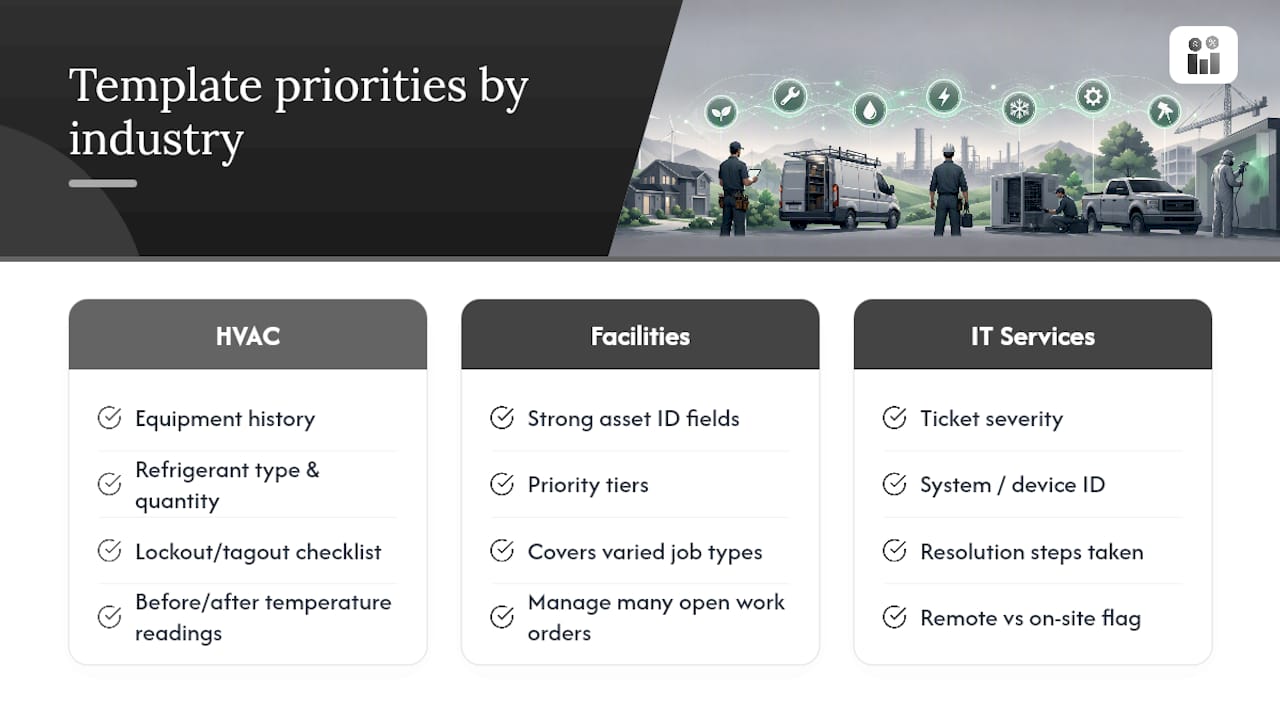
HVAC and refrigeration templates lean heavily on equipment history and safety compliance. A template here typically requires refrigerant type and quantity logged (for regulatory reporting), a checklist for lockout and tagout steps, and before/after temperature readings as photo or data evidence.
Facilities maintenance templates often cover a wider variety of job types under one roof, from a leaking faucet to an elevator inspection. These templates benefit most from strong asset ID fields and priority tiers, since a facilities team might be juggling twenty open work orders across a single building at once.
IT services templates look different again. Instead of parts and labor in the traditional sense, they track ticket severity, system or device ID, resolution steps taken, and often a remote versus on-site flag that changes billing structure entirely. Signature capture may matter less than a resolution confirmation from the end user.
Field operations and technical service crews face their own version of this problem: standardized procedures that have to survive inconsistent connectivity and constantly changing site conditions. Resources like Dronable’s operations manual illustrate how field teams document and enforce SOPs when the crew is rarely in the same location twice, a design challenge that applies directly to work order checklists.
The lesson across all three: start from a common template skeleton, then customize the middle section for what that trade actually needs to prove a job was done right.
Customizing Templates Without Breaking Consistency
Every field service business has quirks that a generic template won’t cover, but customization done poorly creates twenty slightly different versions of the same form. The fix is customizing the middle of the template while keeping the skeleton fixed.
Keep header fields, signature fields, and close-out validation identical across every template in your business. Customize the checklist and parts sections per job type, since that’s where trade-specific requirements actually live. An electrical panel inspection and a landscaping job should share the same customer and signature structure, but nothing else needs to match.
Build customization around your actual job mix, not a hypothetical worst case. Create a short template for the common case and a longer one for the exception, rather than one bloated template trying to serve both.
Involve technicians directly in customization decisions. They know which fields they skip every time and which ones they wish existed but don’t. A dispatcher or owner building templates alone tends to over-engineer the back office fields and under-engineer the parts of the form technicians actually touch fifty times a week.
Revisit customization whenever you add a new service line. A plumbing company that starts offering water heater installations needs a genuinely different checklist, not a bolt-on field added to the existing “general repair” template.
Keeping Templates Accurate as Your Business Changes
A template built once and never revisited slowly drifts out of sync with how the business actually operates, and nobody notices until billing errors or missing data start piling up.
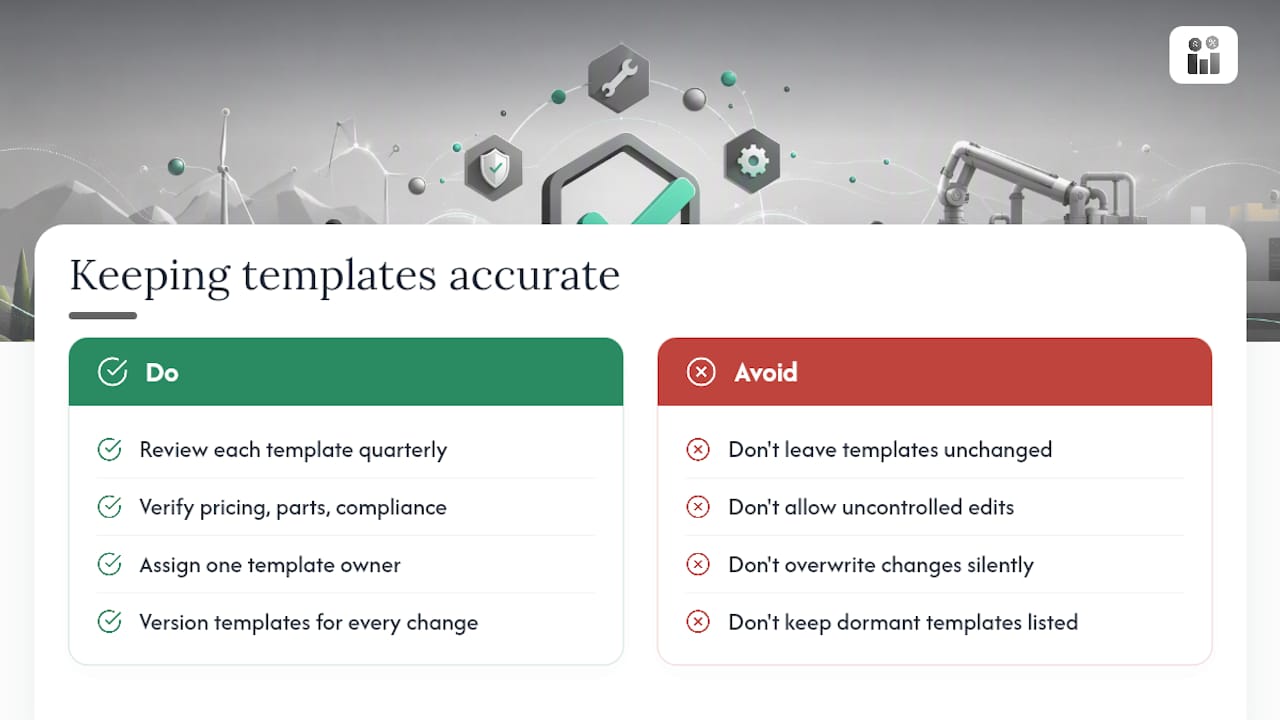
Set a recurring review, quarterly works for most small and midsize operations, where someone actually opens each active template and checks whether the fields still match current pricing, current parts numbers, and current compliance requirements. Pricing changes are the most common drift point: a labor rate field with a stale default rate quietly under bills every job until someone catches it.
Assign ownership. One person, usually the operations manager, should be responsible for template changes rather than letting every dispatcher add fields ad hoc. Uncontrolled edits are how a clean template becomes a bloated one within a year.
Version templates instead of overwriting them silently. If you change a checklist mid quarter, keep a record of what changed and when, so a dispatcher can explain why last month’s completed jobs look different from this month’s in a report.
Retire templates that stop getting used. A dormant “seasonal inspection” template from three years ago that nobody deleted just adds noise to the job type dropdown every technician has to scroll past.
Finally, treat technician feedback as an early warning system. If technicians start working around a required field, entering a placeholder value just to get past it, that field has already failed and needs fixing before the data underneath it becomes unreliable.
Common Mistakes That Undermine Work Order Templates
The single biggest mistake is copying a paper form into digital fields without rethinking the workflow, which just digitizes the same bottlenecks that existed on clipboards. A close second is making too many fields required. Technicians facing a fifteen field mandatory form on a five minute job will find workarounds, and workarounds mean bad data.
Skipping the pilot phase causes damage that’s hard to reverse. Rolling a new template out to the entire team at once means any design flaw gets baked into hundreds of jobs before anyone flags it.
Other recurring mistakes worth watching for:
- Leaving parts and labor as free text instead of structured fields tied to inventory and rates
- Forgetting to test offline behavior before a technician hits a dead zone on a real job
- Letting every department build its own version of the same template
- Never reviewing templates after launch, so pricing and compliance details go stale
- Requiring signatures or photos that add no real evidentiary value, just friction
Most of these mistakes share a root cause: building the template around what’s easy to configure rather than what a technician needs at the exact moment they’re standing in front of the job.
Why Firmanager Builds Every Template Around the Full Job Lifecycle
Firmanager ties work order templates directly to scheduling, invoicing, and HR modules under one login, so a completed checklist doesn’t sit disconnected from the invoice or the technician’s timesheet. That single login, cloud synced structure is deliberate: it’s the direct answer to the mistake of digitizing a broken process, since every module reads from the same job data instead of a patchwork of exports.
Modular templates mean an HVAC checklist and an IT service ticket can share the same header and signature structure while customizing everything trade-specific in between. That consistency is what makes company-wide reporting possible instead of aspirational.
We built it this way because a work order template is only as good as what it connects to. A form that captures perfect field data but never reaches the invoice has solved nothing.
— KaiosMedia
Try Firmanager’s Work Order Templates in Your Business
Firmanager connects your work order templates directly to scheduling, mobile technician access, and invoicing, so a completed checklist becomes a billed job without anyone retyping a single field.
That connection is the difference between a template that looks good in a demo and one that actually saves your office staff hours every week. If you’re currently running templates through one tool and invoices through another, the sync gap between them is costing you time you can’t easily see until it’s gone. Firmanager keeps that data in one place from the first dispatch to the final invoice.
See how the configuration works for your specific job types by starting a trial or requesting a walkthrough on the Firmanager platform page. Bring one real job type from your business and you’ll know within a day whether the template fits how your technicians actually work.
Sources
- Field service management software features: users vs buyers
- 15 questions to ask before choosing field service management software
Recommended
Run your whole business in one place
CRM, quotes, work orders, invoicing, expenses, HR and HSE — one login, every device. Free-forever plan.
Start free →