Employee Self Service Portal: Quick Access Guide
Employee Self Service Portal: Quick Access Guide
An employee self service portal is a secure web or mobile tool that lets you view pay stubs, request time off, and update your HR information — and you access it using the login link or registration code your employer provides. Most portals also cover W-2 forms, tax withholdings, benefits enrollment, and direct deposit settings, all in one place.
Get access now — three steps:
- Find the login URL or mobile app your employer sent during onboarding (check your welcome email or company intranet)
- Request a registration code from HR if you don’t have credentials yet
- Sign in with your User ID and password, or use biometric login (Face ID/Touch ID) on the mobile app
Table of Contents
- What does an employee self service portal actually do?
- How do you log in or register for the first time?
- How to complete the most common ESS tasks
- What to do when you can’t access the portal or a feature is missing
- How to keep your ESS account secure
- Mobile app vs. web portal: which should you use?
- How Firmanager supports employee self-service for service teams
- How to manage your notification settings
- Logging out securely and understanding session timeouts
- Key Takeaways
- The case for self-service in service businesses
- Firmanager: built for service teams who need more than a basic portal
- Useful sources and further reading
What does an employee self service portal actually do?
An ESS portal puts routine HR and payroll tasks directly in your hands, cutting out the back-and-forth with HR for every small request. Common features include:
- Pay statements and W-2s — view, download, or print current and historical pay stubs
- Time tracking — clock in/out, view hours, and check schedules
- Leave management — submit time-off requests and check remaining balances
- Benefits enrollment — review and update health, dental, and retirement elections
- Personal info updates — change your address, emergency contacts, and tax withholding (W-4)
One thing to know upfront: not every employee sees the same features. Employers configure which modules are active, so a missing feature usually means HR hasn’t enabled it — not that the system is broken. If something you expect isn’t there, ask HR directly rather than spending time troubleshooting.
Pro Tip:o Tip: When you register for the first time, have your registration code ready before you start. This code links your account to your company’s database, and you generally cannot complete setup without it. Your welcome email or HR team is the right place to get it.
How do you log in or register for the first time?
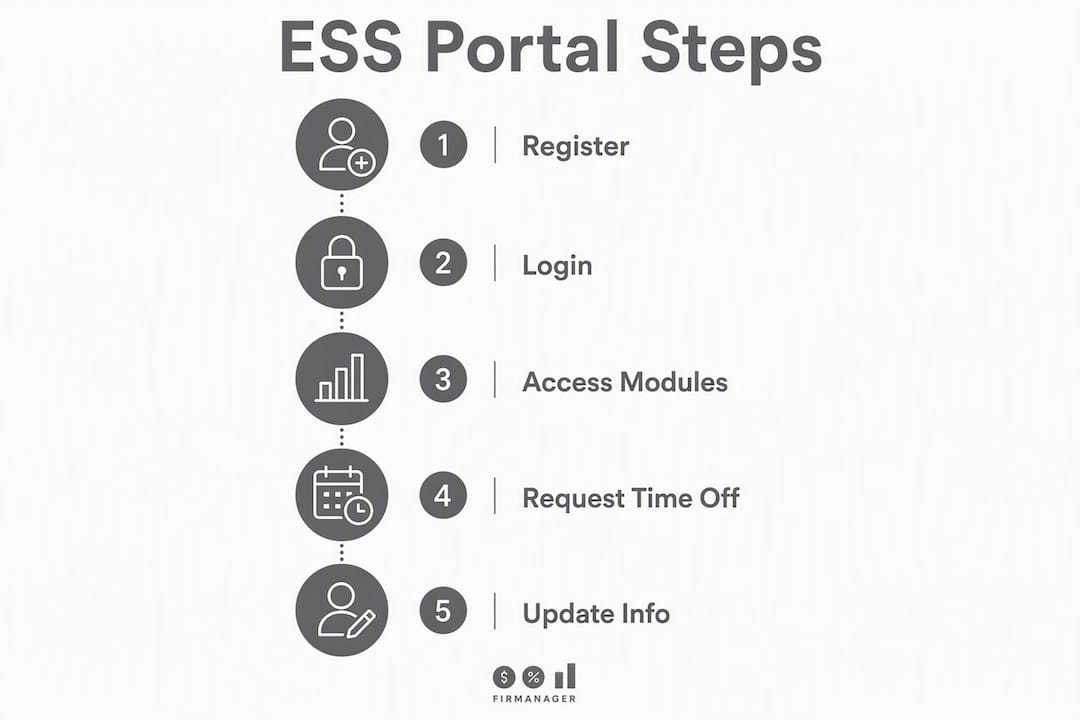
Follow these steps whether you’re setting up a new account or signing in after a break:
- Find your employer’s login URL — check your onboarding email, company intranet, or ask HR. Never search for the portal on Google and click the first result; type the exact URL directly into your browser.
- Request a registration code if this is your first login. Registration codes are generated by HR or payroll admins and tie your account to the correct company record. You cannot self-register without one.
- Verify your identity — the portal may ask for your employee ID, last four digits of your SSN, or your work email address.
- Create your credentials — set a strong password and configure security questions. On mobile, enable Face ID or Touch ID at this stage.
- Set up MFA — most portals prompt you to add a second verification method (text, authenticator app, or email code). Complete this before exiting setup.
Locked out? Use the “Forgot Password” or “Forgot Username” tools on the login page before contacting HR. Portals commonly auto-lock accounts after multiple failed login attempts to protect your data. Automated recovery is faster than an HR ticket in most systems.
Common login failures and quick fixes: confirm you’re on an HTTPS URL with the correct company domain, try a supported browser (Chrome or Edge work for most portals), clear your browser cache, and check that your mobile app is updated and has the necessary permissions enabled.
How to complete the most common ESS tasks

Viewing pay stubs and W-2s
Navigate to the Pay or Payroll section of your portal. Pay stubs are usually listed by pay period; select one to view, download as a PDF, or print. W-2 forms appear in the same section each January. If you need a prior-year W-2, look for an “Archive” or “Tax Documents” tab.
Before printing any document, switch to the web portal rather than the mobile app. PDF export and print formatting work more reliably on a full browser, especially for tax forms.
Requesting time off and checking leave balances
Go to Time Off or Leave in the main menu. Your current balances (vacation, sick, PTO) appear at the top. To submit a request, select the dates, choose the leave type, add any required notes, and submit. You’ll typically receive an email confirmation and a notification when your manager approves or declines.
Updating direct deposit and contact info
Direct deposit changes live under Pay Settings or Banking. Add or edit your bank account number and routing number, then save. Changes usually take one to two pay cycles to take effect — confirm the timeline with HR. Contact details and emergency contacts are typically under My Pro Tip:ofile or Personal Information.
Pro Tip:o Tip: After updating direct deposit, check your next pay stub to confirm the new account number appears correctly. Catching an error before payday is much easier than resolving a misdirected deposit after the fact.
What to do when you can’t access the portal or a feature is missing
Work through this checklist before opening an HR ticket:
- Confirm you’re using the exact URL your employer provided (not a search result)
- Try “Forgot Password” or “Forgot Username” on the login page
- Clear your browser cache and cookies, then reload
- Switch to the mobile app, or vice versa, to rule out a browser issue
- Confirm you’re logging in with your company email, not a personal one
- Check that your mobile app is on the latest version
If a feature is missing entirely, that’s almost always a configuration decision by HR, not a system error. Contact your HR or payroll team and ask them to enable the module.
Sample email to HR:
Subject: ESS Portal Access Request
Hi [HR Contact Name],
I’m having trouble accessing [specific feature or the portal itself]. My employee ID is [ID], and I’m using [company email]. Could you confirm my registration code and check whether [feature] is enabled for my account?
Thank you, [Your Name]
Most HR teams respond to access requests within a few business days.
How to keep your ESS account secure
Enable MFA as soon as you register. On the web, this usually means a one-time code sent to your phone or generated by an authenticator app like Google Authenticator or Microsoft Authenticator. On mobile, biometric login (Face ID or Touch ID) replaces the password step and is both faster and more secure for daily use.
Phishing is the most common threat to ESS accounts. Before entering your credentials anywhere, check that the URL starts with https:// and matches your employer’s exact domain. Attackers frequently build pages that look identical to real portals. When downloading the mobile app, verify the developer name and app store listing against what your employer specifies — impostor apps exist in both the App Store and Google Play.
Pro Tip:o Tip: Never enter your portal credentials on a public or shared computer without logging out completely afterward. Most portals time out after a short period of inactivity, but a manual logout is the only guaranteed way to close your session.
Role-based access means your manager or HR admin can see certain data you submit (like time-off requests), but other employees cannot view your pay or personal details.
Mobile app vs. web portal: which should you use?
| Task | Mobile app | Web portal |
|---|---|---|
| Clocking in/out | ✅ Best option | ✓ Available |
| Biometric login | ✅ Face ID/Touch ID | ✗ Not available |
| Push notifications | ✅ Instant alerts | ✗ Not available |
| Downloading/printing forms | ✓ Limited | ✅ Best option |
| Updating direct deposit | ✓ Available | ✅ Easier on larger screen |
| Offline access | ✗ Usually none | ✗ Requires connection |
Mobile ESS apps support biometric login and push notifications, making them the fastest path for daily tasks like checking your schedule or submitting a time-off request. The web portal is better for anything that involves downloading a PDF, printing a tax form, or filling out a detailed form.
When you install the app, review the permissions it requests. Some apps ask for camera and location access for features like GPS clock-ins or receipt uploads — these are legitimate for those features, but you can decline permissions for features you don’t use.
- Use the mobile app for: clocking in/out, checking leave balances, approving requests, and receiving alerts
- Use the web portal for: downloading W-2s, printing pay stubs, updating banking details, and completing enrollment forms
How Firmanager supports employee self-service for service teams
Firmanager includes a dedicated employee self-service mobile portal built for service businesses — field teams, maintenance crews, and technical staff who need HR access without sitting at a desk.
Key capabilities employees can access through Firmanager:
- Time and leave tracking — clock in/out, submit leave requests, and view balances from the mobile app
- Payslip access — view and download pay statements directly from the portal
- Document handling — access and submit job-related documents in the field
- Real-time notifications — receive SMS and email alerts for schedule changes, approvals, and updates
- Single login across devices — the same credentials work on mobile and web, cloud-synced so data is always current
For service businesses, Firmanager maps directly to the tasks covered in this guide: employees manage their own time, leave, and pay data through the mobile portal, while HR and operations managers retain full visibility through the same platform.
Firmanager’s all-in-one design means the ESS portal connects to work orders, dispatch, and compliance tracking — so employee data and job data stay in sync without manual entry.
How to manage your notification settings
Most ESS portals let you control which alerts you receive and how. Look for a Notifications or Alerts section under your profile or account settings.
Typical options include:
- Email vs. push notifications — choose one or both for events like pay stub availability, time-off approvals, and schedule changes
- Frequency settings — some portals let you batch daily summaries instead of individual alerts
- Opt-out by category — you can usually disable non-critical alerts (like general announcements) while keeping payroll and approval notifications active
Check your notification settings after first login. The defaults are often set to send everything, which can create noise. Trim to the alerts that actually affect your workday.
Logging out securely and understanding session timeouts
Always log out manually when you finish using the portal, especially on a shared or public device. Most portals have a Sign Out or Log Out button in the top-right corner of the screen or under your profile menu on mobile.
Session timeouts are automatic security features. Most portals end your session after 15–30 minutes of inactivity and require you to sign in again. This protects your data if you step away from your screen. On mobile, closing the app does not always end your session — use the explicit logout option to be certain.
If you’re on a personal device and trust the environment, saving your username (but not your password) is a reasonable convenience. Never save credentials on a shared or work-issued device used by multiple people.
Key Takeaways
Your ESS portal gives you direct control over pay, time, and HR data — and getting in requires only your employer’s login URL and a registration code from HR.
| Point | Details |
|---|---|
| Get your login URL from HR | Never search for the portal online; use the exact URL or app link your employer provides. |
| Registration code is required | HR generates this code; you cannot complete first-time setup without it. |
| Use “Forgot Password” first | Portals auto-lock after repeated failed attempts — use self-service recovery before contacting HR. |
| Feature access depends on employer config | Missing features are usually disabled by HR, not broken; ask your HR team to enable them. |
| Firmanager for service teams | Firmanager’s mobile ESS portal covers time tracking, payslips, leave, and real-time notifications for field employees. |
The case for self-service in service businesses
Most employees think of an ESS portal as a payroll tool. For service teams, it’s more than that. When a field technician can check their schedule, submit leave, and pull a pay stub from their phone between jobs, HR stops fielding a dozen routine calls a day. That’s not a minor efficiency gain — it’s the difference between an HR team that reacts to requests and one that has time to focus on hiring, compliance, and workforce planning.
Firmanager was built with exactly this dynamic in mind. The employee self-service mobile portal connects directly to work orders and dispatch, so time entries and leave requests reflect real operational context, not data entered in isolation. For businesses running field teams, that integration is what makes self-service actually work.
Firmanager: built for service teams who need more than a basic portal
Field service businesses need an ESS tool that works where their employees actually are — on a job site, in a vehicle, or between service calls. Firmanager delivers a mobile-first employee portal that covers time tracking, leave requests, payslip access, document handling, and real-time notifications, all connected to the same platform your operations team uses for work orders, dispatch, and compliance.
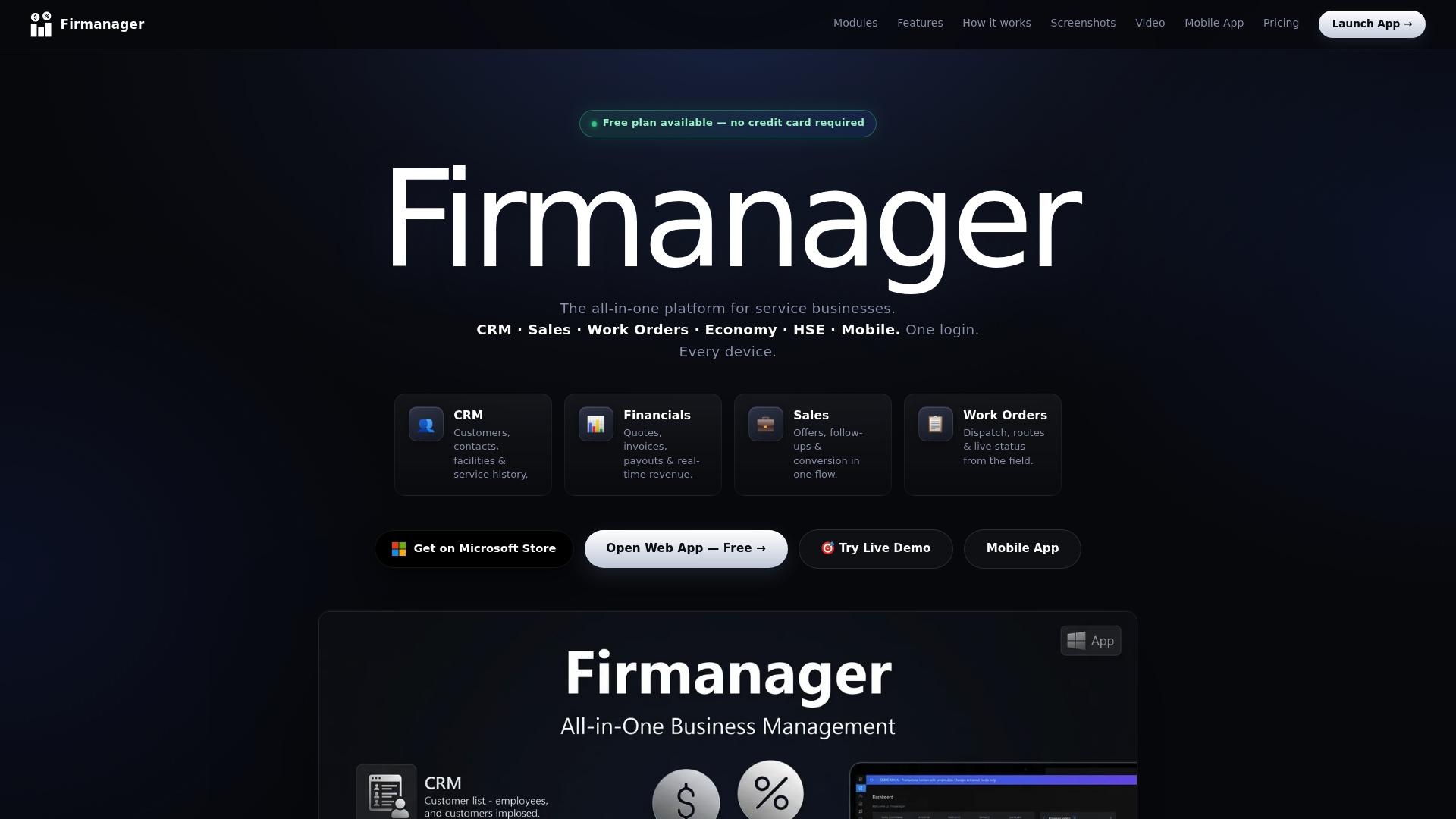
Managers and owners can start a free trial at firmanager.cloud and have employee records and registration access set up within the same session. Employees whose companies already use Firmanager should contact their HR admin for the mobile app link and their registration code — setup takes minutes, and the app is available on both iOS and Android.
Useful sources and further reading
Always verify that any link you follow uses the official domain your employer or vendor has given you before entering credentials.
- Employee Self-Service — Mass.gov: official Commonwealth of Massachusetts ESS portal for state employees
- State of Kansas Employee Service Center: state employee portal covering payroll, W-2s, leave balances, and benefits
- ESS Portal — MO.gov: Missouri state employee self-service portal
- Firmanager — All-in-One Business Management Platform: Firmanager product page for service business ESS features, mobile app access, and signup
- Yakho Telecoms Customer Portal: reference for how secure portal infrastructure delivers role-based access
Recommended
Run your whole business in one place
CRM, quotes, work orders, invoicing, expenses, HR and HSE — one login, every device. Free-forever plan.
Start free →