Invoice Approval Workflow for Field-Service Owners
Invoice Approval Workflow for Field-Service Owners
A gated, PM-led invoice approval workflow — one that locks records until field evidence is verified and routes by cost-code threshold — is the fastest way to cut billing lag and protect job-site margins. The structure is straightforward: intake captures the work order data, a foreman or technician attaches photos and a customer signature, the PM verifies job-cost coding, and the owner only touches invoices above a set dollar threshold. Gated sequences ensure managers make decisions on complete records and preserve a clean audit trail for compliance. Your one next step: designate a single invoice intake inbox or enable mobile capture in your field app so every invoice enters the same controlled channel.
Statistic callout: Industry finance consultants recommend PMs handle the majority of invoice approvals to prevent owner bottlenecks and keep job-costing accurate.
Pro Tip: Set a rule on day one: no invoice moves to the PM queue until it has a job number, at least one work photo, and a customer signature. That single gate eliminates most disputes before they start.
Table of Contents
- What does a gated invoice approval sequence look like?
- Who should approve what: roles and responsibilities
- What field evidence must exist before an invoice moves forward?
- Which automation features speed approvals and reduce errors?
- How Firmanager implements a gated approval flow
- Your 30–90 day rollout plan
- Common failure modes and how to get field-team buy-in
- Audit trail and recordkeeping best practices
- KPIs to track and targets to measure success
- A copyable one-page workflow template
- Key Takeaways
- Why this workflow matters more than most owners realize
- Firmanager gives you every gate in one platform
What does a gated invoice approval sequence look like?
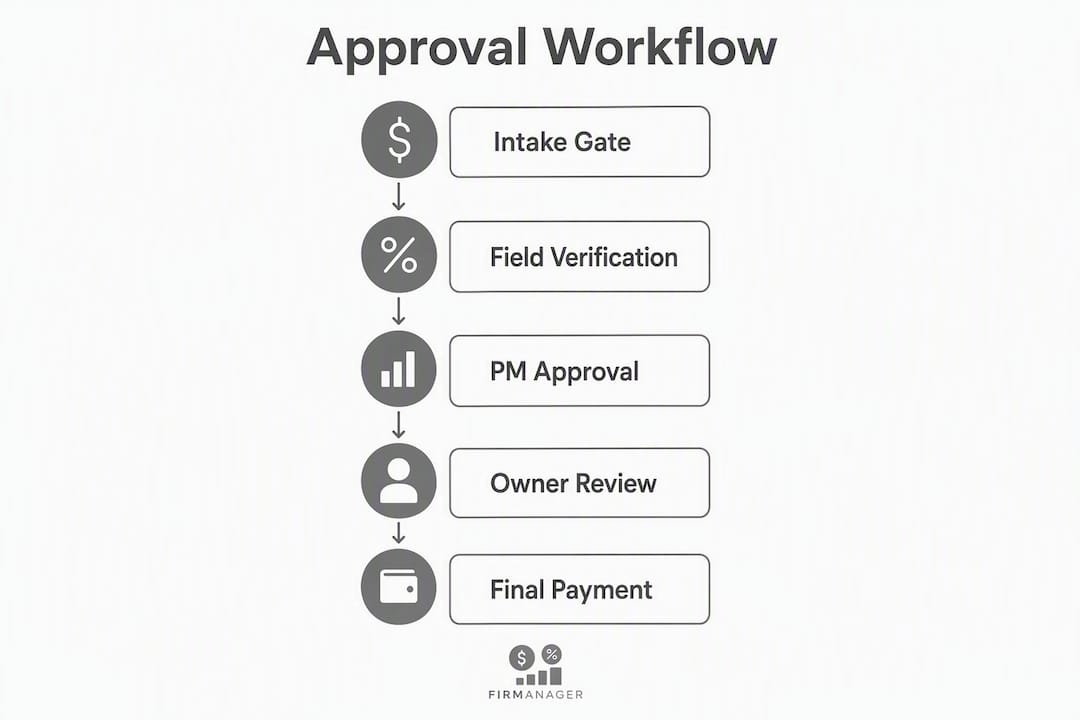
A reliable approval process runs in five locked stages. Each gate must close before the next opens.
- Intake — The technician or foreman submits the invoice record through a mobile form or a shared intake inbox. Status: Draft. No payment action is possible.
- Field verification — The foreman attaches required evidence (photos, time log, parts receipts, customer signature). Status changes to Pending Verification. The record is locked; no edits without a logged reason.
- PM review — The PM checks job-cost coding, hours, and line items against the work order. Status: Pending PM Approval. The PM either approves or routes to the exception queue.
- Manager sign-off — Triggered only when the invoice exceeds your threshold (see below). Status: Pending Owner Approval. Owner approves or returns with a note.
- Finance release and billing — Accounting posts the approved record and releases it for payment or client billing. Status: Approved / Released.
Practical thresholds you can adopt today
Tiered thresholds keep the flow moving while preserving oversight:
- Small invoices: auto-approve after field verification passes
- Medium invoices: PM approval required (up to $2,500)
- Large invoices: PM plus owner sign-off required (above $2,500)
Handling exceptions without blocking the main pipeline
Configure the workflow to divert invoices with missing documentation to an exception queue rather than letting them stall the primary path. Assign one person (usually the PM or office manager) to clear the exception queue daily.
Pro Tip: Give exception invoices a 24-hour SLA. If the missing evidence isn’t supplied within that window, the technician’s supervisor gets an automatic alert.
Who should approve what: roles and responsibilities
| Role | Gate Owned | Authority Limit | Backup Approver |
|---|---|---|---|
| Technician / Foreman | Intake + field evidence | Submit only | Crew lead |
| Project Manager | PM review + cost-code coding | Up to $2,500 | Senior PM |
| Owner / Manager | High-value sign-off | Above $2,500 | Designated partner |
| Accounting | Finance release + ledger posting | All approved invoices | Controller |
PMs verifying job-cost coding prevents operational bottlenecks and keeps owners focused on strategy rather than line-item review. Owners who approve every invoice become the single point of failure in busy weeks.
Pro Tip: Make PMs the primary approver for job-cost accuracy, and reserve owner approval for exceptions and invoices above $2,500 only. Your billing cycle will move faster, and your job-cost reports will be cleaner.
What field evidence must exist before an invoice moves forward?
No invoice should reach the PM queue without these items confirmed:
| Evidence Item | Format | Collected By |
|---|---|---|
| Work photo(s) | Mobile upload (min. 1 per task) | Technician |
| Customer signature / acceptance | Digital signature on mobile form | Technician |
| Time log with tech ID | Hours in/out, employee ID | Technician |
| Job number and cost code | Dropdown or typed field | Technician / Foreman |
| Parts receipts or delivery slips | Photo or PDF upload | Technician |
| Change-order approval (if applicable) | Signed document or digital approval | Foreman / PM |
Mobile form fields to collect at point of service
- Job number (required, linked to work order)
- Phase and cost code (dropdown from your job hierarchy)
- Hours worked (start/end or total)
- Parts used (item, quantity, unit cost)
- Photo upload (minimum one; flagged incomplete if missing)
- Customer signature (digital, timestamped)
- Notes / exceptions (free text, optional)
Incomplete submissions route automatically to the exception queue, not to the PM. This keeps approvers from wasting time on records they cannot act on.
Which automation features speed approvals and reduce errors?
Automation cuts approval cycle time by removing manual hand-offs. Prioritize these features when evaluating any invoice processing system:
- Mobile capture with photo upload and digital signature at point of service
- Automatic routing by job number, cost code, and dollar threshold
- Audit trail that logs approver user ID, timestamp, and status change on every action
- Exception queue with escalation alerts and SLA timers
- PO and change-order linking so approvers can compare actuals to authorized scope
Integration priorities
- Map your job > phase > cost-code hierarchy before configuring routes. ERP sync and correct cost-code mapping are foundational — routing errors almost always trace back to mismatched codes.
- Enable two-way sync so approvals write back to the source record in your accounting or ERP system.
- Confirm that approved invoices post ledger entries automatically, not through a manual export step.
Key rule: Only actions that update the invoice record with a timestamp and status change count as approvals. A chat message or email reply that never touches the system of record is a notification, not an approval. Build this rule into your workflow policy from day one.
How Firmanager implements a gated approval flow
Firmanager maps directly to the five-gate sequence described above:
- Mobile capture and signatures — Technicians submit work evidence, photos, and customer signatures from the mobile app. The record locks immediately on submission.
- Configurable routing and thresholds — Route by job, cost code, or invoice value. PM queues and owner escalations trigger automatically based on the thresholds you set.
- Audit trail with timestamps — Every status change, approver action, and version edit is logged with user ID and timestamp, giving you a defensible record for disputes or audits.
- ERP and accounting sync — Approved invoices sync to your accounting system, eliminating duplicate entry and keeping job-cost reports current.
Pro Tip: Start your Firmanager pilot on one active project. Map that project’s cost codes, enable mobile capture for the field team, and run two weeks of live approvals before rolling out company-wide.

Your 30–90 day rollout plan
| Phase | Milestone | Owner |
|---|---|---|
| Days 1–30 | Define intake rules, map cost codes, enable mobile capture, run pilot on one project | Owner + PM |
| Days — | Measure pilot KPIs, adjust thresholds, train remaining PMs and field teams | PM + Accounting |
| Days — | Full rollout, ERP sync live, exception queue monitored weekly | Owner + Accounting |
Pilot checklist
- Select one active project with at least two technicians.
- Map the job > phase > cost-code hierarchy for that project.
- Enable mobile capture and configure the intake form fields.
- Set threshold rules (auto-approve, PM, owner).
- Run a 2–4 week live pilot and log every exception.
- Measure approval cycle time and billing lag before and after.
- Adjust thresholds and evidence requirements based on pilot data.
Pro Tip: Brief field teams in under five minutes: “Take a photo, get the signature, hit submit. That’s it.” Complexity kills adoption. Keep the mobile form to seven fields or fewer.
Common failure modes and how to get field-team buy-in
The most common pitfalls in a new approval process:
- Owner approving everything — Creates a bottleneck every busy week. Fix: enforce PM authority limits from day one.
- Missing intake gate — Invoices enter the PM queue without evidence. Fix: configure the system to block progression until all required fields are complete.
- Approvals not writing back to the record — Email or chat approvals that never update the system create audit gaps. Fix: require that only system-level actions count as approvals.
Getting technicians on board
Field teams adopt new capture rules when they see direct benefits — faster billing and less rework top the list. Use this framing in your site briefing:
Pair that message with a two-way notification system so technicians get a confirmation when their submission is accepted and when the invoice is released. Closed-loop feedback builds the habit faster than any policy memo.
Audit trail and recordkeeping best practices
Every approved invoice record should contain:
- Approver user ID and full name
- Timestamp for each status change (submitted, verified, PM-approved, owner-approved, released)
- Linked evidence files (photos, signatures, receipts) tied to the invoice ID
- Version history showing any edits and the reason logged
- Final ledger entry reference from the accounting system
Store all records in cloud-based storage tied to the invoice ID, not in a folder structure that can be reorganized. The IRS generally expects business records to be retained for at least three years, and contracts or warranty-related invoices often warrant longer retention. Restrict edit access after approval: only accounting should be able to modify a released record, and every change must log a reason.
Spot-check test: Once a week, pull three approved invoices and confirm the ledger entries match the approved amounts. If they don’t, your write-back sync has a gap.
KPIs to track and targets to measure success
| KPI | What to Measure | Reporting Cadence |
|---|---|---|
| Approval cycle time | Hours from intake submission to finance release | Weekly |
| Billing lag | Days from job completion to invoice sent | Weekly |
| Exception rate | Percent of invoices routed to exception queue | Weekly |
| Invoice dispute rate | Percent of invoices disputed by clients | Monthly |
| Days Sales Outstanding (DSO) | Average days to collect payment | Monthly |
Track exception rate weekly — a rising rate signals a training gap or a form-field problem, not an approver problem. DSO improvements take 60–90 days to show after rollout, so set expectations with your team accordingly.
- Set a weekly review of the exception queue with your PM.
- Flag any invoice with an approval cycle time over 48 hours for a root-cause note.
- Review DSO monthly and compare to your pre-workflow baseline.
A copyable one-page workflow template
Intake rules
- All invoices enter through the designated intake channel (mobile app or shared inbox).
- Required fields: job number, cost code, technician ID, date of service.
- Incomplete submissions route to exception queue automatically.
Evidence required before PM review
- Minimum one work photo per task line
- Customer signature (digital, timestamped)
- Time log (start/end, tech ID)
- Parts receipts or delivery confirmation
- Change-order approval (if scope changed)
Approval gates and thresholds
- Gate 1 — Intake: Technician submits. System checks required fields.
- Gate 2 — Field verification: Foreman confirms evidence. Record locks.
- Gate 3 — PM review: PM verifies cost codes and line items. Approves or routes to exception.
- Gate 4 — Owner sign-off: Triggered above $2,500. Owner approves or returns with note.
- Gate 5 — Finance release: Accounting posts and releases for billing.
Editable mobile form fields
- Job number
- Phase / cost code
- Hours (start/end)
- Parts (item, qty, unit cost)
- Photo upload
- Customer signature
- Notes
Exception handling
- Missing evidence: route to exception queue, notify submitter within 2 hours.
- Disputed line item: PM flags, routes to owner with note, pauses billing clock.
- Threshold exceeded unexpectedly: auto-escalate to owner, log reason.
| Point | Details |
|---|---|
| Gate before routing | Lock the record at intake until all required fields and evidence are present. |
| PM owns cost-code accuracy | Route all standard invoices to the PM first; owners review only above-threshold items. |
| Exception queue protects flow | Divert incomplete invoices to a separate queue so the main pipeline stays unblocked. |
| Write-back is mandatory | Only system-level approvals that update the record with a timestamp and user ID count. |
Key Takeaways
A gated, PM-led invoice approval workflow with threshold-based routing and a mandatory exception queue is the most reliable way for U.S. field-service businesses to cut billing lag, protect margins, and maintain a clean audit trail.
| Point | Details |
|---|---|
| Start with one intake gate | Require job number, photo, and signature before any invoice reaches the PM queue. |
| Use tiered thresholds | Auto-approve under $250, PM approval up to $2,500, owner sign-off above $2,500. |
| Assign PM ownership | PMs verify cost-code accuracy; owners focus on high-value and exception approvals only. |
| Track approval cycle time | Measure hours from intake to release weekly; flag anything over 48 hours for review. |
| Firmanager maps to every gate | Mobile capture, configurable routing, audit trail, and ERP sync cover the full five-gate sequence. |
Pro Tip: Do three things today: designate a single intake channel, set your three threshold tiers, and brief your PM on their approval authority. Those three steps alone will cut your billing lag noticeably within 30 days.
Why this workflow matters more than most owners realize
The conventional wisdom says invoice delays are a cash-flow problem. They’re not. They’re a process problem that shows up as a cash-flow problem. Most field-service businesses lose days on billing not because clients are slow to pay, but because invoices sit in someone’s inbox waiting for a signature, a photo, or a cost-code correction that should have been captured on-site.
The PM-led, gated approach described here shifts that burden to the point of service, where the information actually exists. Owners who implement it consistently report cleaner job-cost data, fewer client disputes, and a measurable drop in days sales outstanding. The audit trail is a secondary benefit that becomes primary the first time a client disputes a charge and you can show them a timestamped photo, a signed acceptance, and an approval log.
Small field-service firms often skip formal approval structures because they feel like enterprise overhead. The five-gate sequence here takes less than a day to configure and less than a week to train. The return on that investment shows up in your next billing cycle.
Firmanager gives you every gate in one platform
Running a field-service business means your approval process has to work on a job site, not just in a back office. Firmanager brings mobile capture, configurable routing, and a full audit trail into a single platform built for service teams.
Your technicians submit photos and signatures from the field. Your PMs review and approve from any device. Your accounting team gets clean, approved records that sync directly to your books. No manual hand-offs, no lost paperwork, no approval emails that never update the system.
Firmanager’s invoicing module includes Stripe integration, threshold-based routing, and real-time notifications so your billing cycle moves without waiting on anyone. There’s a free plan to get started, and paid tiers scale with your team size.
Start your free trial at Firmanager and run your first gated approval pilot this week.
Recommended
Run your whole business in one place
CRM, quotes, work orders, invoicing, expenses, HR and HSE — one login, every device. Free-forever plan.
Start free →